Winfig Sublime Text: Highly Customizable Code Editor

Overview
The Winfig Subl is a Sublime Text settings, Themes, and Plugins pack designed to customize and optimize your Sublime Text experience for Windows 11. It consist of a curated set of plugins that enhance productivity, streamline workflows, and improve the overall development experience on Windows 11.
Features
- Optimized Settings: Pre-configured settings tailored for Windows 11 to enhance performance and usability.
- Curated Plugis: A selection of essential extensions that improve coding efficiency and add useful functionalities.
- User-Friendly Configuration: Easy to install and configure, making it accessible for both beginners and experienced developers.
- Theming: Beautiful themes to enhance the visual experience
Requirements
- Sublime Text installed on Windows 11.
- PowerShell 5+
- Git installed
- Administrator privileges for certain configurations
- Internet access for downloading dependencies
- Package Control for installing plugins.
- Nerd Fonts for enhanced terminal appearance
Quick Install
- Sublime Text:
winget install --id SublimeHQ.SublimeText.4 -e - Git:
winget install --id Git.Git -e - Package Control
Open the Command Palette with Ctrl + Shift + P, type
Install Package Control, and press Enter. - FiraCode Nerd Fonts: Download from Nerd Fonts and install your favorite patched font
Installation Methods
One-line installation - Downloads and runs automatically:
Invoke-RestMethod -useb https://raw.githubusercontent.com/Get-Winfig/winfig-subl/main/setup.ps1 | Invoke-Expression
Why Web Install?
- Always gets the latest version
- No manual download required
- Automatic script verification

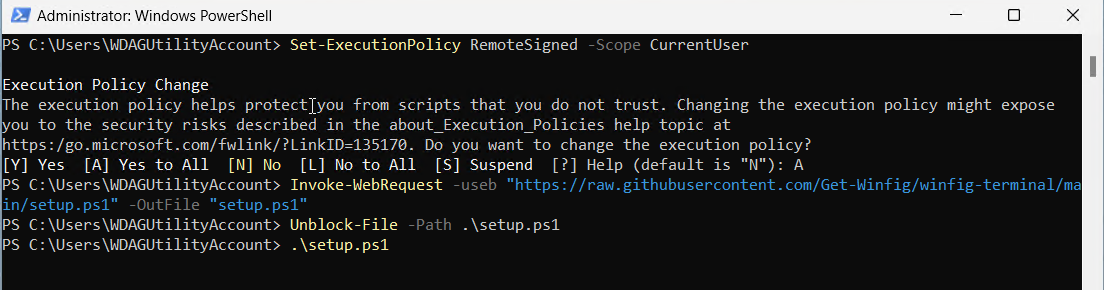
Download and run manually for offline environments:
Set-ExecutionPolicy RemoteSigned -Scope CurrentUser
# Download from GitHub
Invoke-WebRequest -useb "https://raw.githubusercontent.com/Get-Winfig/winfig-subl/main/setup.ps1" -OutFile "setup.ps1"
Unblock-File -Path .\setup.ps1
.\setup.ps1
Note
- Ensure you have the latest script version
- Manual updates required for new releases
- Verify script integrity before running
Post-Installation
- Restart SublimeText to apply all configurations.
- Install Package Control if not already installed. This enables automatic plugin management.
- Customize Further:
- Explore
Preferences>Settingsto tweak your editor experience. - Add or remove plugins as needed via Package Control.
Troubleshooting
- If a plugin or theme does not appear, use
Package Control: Install Packageto add it manually. - For font issues, ensure the Nerd Font is installed and selected in your settings.
- Restart Sublime Text after making changes to settings or plugins.
Plugins
Winfig Sublime Text comes with a curated set of plugins to boost productivity and enhance your coding experience.
| Plugin | Description | Link |
|---|---|---|
| FileDiffs | Compare files and folders within Sublime Text | FileDiffs |
| GitStatusBar | Show Git status in the status bar | GitStatusBar |
| BracketHighlighter | Highlight matching brackets and tags | BracketHighlighter |
| Color Highlight | Highlight color codes in your files | Color Highlight |
| Emmet | High-speed HTML & CSS workflow | Emmet |
| FileIcons | Adds file-specific icons to the sidebar | FileIcons |
| GitGutter | Show git diff in the gutter | GitGutter |
| Gitignore | Generate .gitignore files using templates | Gitignore |
| ImagePreview | Preview images directly in Sublime Text | ImagePreview |
| MarkdownEditing | Enhanced Markdown editing features | MarkdownEditing |
| MarkdownPreview | Preview Markdown files in browser | MarkdownPreview |
| Package Control | Manage Sublime Text packages | Package Control |
| Pretty JSON | Format and validate JSON files | Pretty JSON |
| SideBarEnhancements | More options and features for the sidebar | SideBarEnhancements |
| Status Bar File Size | Show file size in the status bar | Status Bar File Size |
| Statusbar Path | Show file path in the status bar | Statusbar Path |
| Terminal | Open terminals in Sublime Text | Terminal |
💡 You can always add or remove plugins from Package Control
Tips & Usage Notes
Access the Command Palette
Press Ctrl + Shift + P to quickly access commands, install plugins, or change settings.
Switch Themes and Fonts
Go to Preferences > Select Theme to change your editor's appearance.
Set "font_face": "FiraCode Nerd Font" in your settings for best icon and glyph support.
Sidebar Enhancements
Right-click in the sidebar for extra options provided by the SideBarEnhancements plugin, such as file renaming, duplication, and more.
Preview Markdown
Use the MarkdownPreview plugin to view your Markdown files in the browser.
Open the Command Palette and type Markdown Preview: Preview in Browser.
Compare Files Easily
With FileDiffs, right-click two files in the sidebar and select "Compare with..." to quickly see differences between them.
Plugin Management
You can add or remove plugins at any time using Package Control.
To see all installed plugins, open the Command Palette and type Package Control: List Packages.
Keyboard Shortcuts
- Ctrl + P: Quick file open
- Ctrl + B: Toggle sidebar
- Ctrl + ~: Open integrated terminal (with Terminal plugin)
- Ctrl + W: Close current tab
- Ctrl + Tab: Switch between open files
Frequently Asked Questions (FAQ)
How do I update Winfig SublimeText?
Invoke-RestMethod -useb https://raw.githubusercontent.com/Get-Winfig/winfig-subl/main/setup.ps1 | Invoke-Expression
Where can I find the configuration files?
The configuration files are located in the %USERPROFILE%\.Dotfiles\winfig-subl directory within your user profile folder.
Can I customize the settings after installation?
Yes, you can modify the settings to suit your preferences.
Go to Preferences > Settings or edit the JSON file directly for advanced customization.
How do I install additional plugins?
Open the Command Palette (Ctrl + Shift + P), type Package Control: Install Package, and select the plugin you want to add.
What should I do if a plugin or theme doesn't work?
- Restart Sublime Text after installing or updating plugins.
- Use
Package Control: Install Packageto reinstall the plugin. - Ensure your Nerd Font is installed and selected in your settings for best appearance.
How do I reset to default settings?
- You can remove or rename the
%APPDATA%\Sublime Textfolder to reset all settings and plugins. - Restart Sublime Text to regenerate default configuration files.
Is Winfig SublimeText safe to use?
Yes, all scripts and configurations are open source. You can review them on GitHub before running.
Can I sync my settings across devices?
Yes, you can use tools like Sublime Text Sync Settings or manually copy your .Dotfiles\winfig-subl folder to other machines.
How do I get support or report an issue?
Please open an issue on the GitHub repository for help, bug reports, or feature requests.
Troubleshooting Guide
If you encounter any issues while using Winfig SublimeText, here are some common problems and their solutions:
| Issue | Solution |
|---|---|
| Plugin not appearing after install | Restart Sublime Text. Use Package Control: Install Package to reinstall if needed. |
| Nerd Font not displaying correctly | Ensure the font is installed on your system and set "font_face": "FiraCode Nerd Font" in settings. |
| Theme or color scheme not applied | Go to Preferences > Select Theme and choose your preferred theme. |
| Settings changes not taking effect | Save the settings file and restart Sublime Text. |
| Error on startup or after plugin install | Remove or disable the problematic plugin via Package Control, then restart Sublime Text. |
| Cannot open integrated terminal | Ensure the Terminal plugin is installed and use Ctrl + Shift + P, then type Terminal: Open Terminal. |
| Markdown preview not working | Make sure MarkdownPreview is installed. Use the Command Palette to run Markdown Preview: Preview in Browser. |
| Lost or corrupted settings | Restore from a backup if available, or delete %APPDATA%\Sublime Text to reset to defaults. |
| Package Control missing or broken | Reinstall Package Control using the Command Palette. |
If your issue is not listed here, please check the official Sublime Text documentation or open an issue on the Winfig SublimeText GitHub repository.