PowerToys: Advanced Windows Productivity Suite
Overview
PowerToys is a powerful, open-source suite of utilities from Microsoft that supercharges Windows productivity. With Winfig Dots, PowerToys is pre-configured for advanced workflows, custom keybindings, and enhanced system tools—making Windows 11 faster, smarter, and more customizable than ever.
Features
- Custom Keybindings: Advanced, ergonomic shortcuts for every tool.
- Command Not Found Handler: Instantly suggests fixes for mistyped commands.
- Environment Variables Manager: Edit and manage environment variables with a GUI.
- Hosts File Editor: Safely edit your system hosts file.
- Registry Preview: View and edit Windows Registry files with syntax highlighting.
- File Explorer Add-ons: Preview SVG, Markdown, PDF, and more directly in Explorer.
- File Locksmith: See which processes are locking a file.
- Image Resizer: Batch resize images from the context menu.
- New+ Templates: Custom templates symlinked for quick file creation.
- Peek: Quick file preview with Space.
- PowerRename: Advanced batch renaming tool.
- Find My Mouse: Shake mouse to locate cursor instantly.
- Always On Top: Pin any window with Win + Ctrl + T.
- Workspaces: Organize windows with Win + /.
- ZoomIt: Advanced screen zoom, draw, and timer tools.
- Text Extractor: OCR any screen region with Win + T.
- Shortcut Guide: View all shortcuts with Alt + F1.
- PowerToys Run: Fast launcher with Win + Space (Calculator, Programs, URLs, etc.).
- Color Picker: Pick colors anywhere with Win + C.
- Awake: Keep your PC awake on demand.
- Advanced Paste: Smart clipboard and paste enhancements.
Requirements
- PowerToys installed on Windows 11
- PowerShell 5+ for automation and scripting
- Git installed for dotfile management
- Administrator privileges for certain configurations
- Internet access for downloading dependencies
- Nerd Fonts (Hack Nerd Font) for enhanced terminal and UI appearance
Quick Install
- PowerToys:
winget install --id Microsoft.PowerToys -e - Git:
winget install --id Git.Git -e - PowerShell 7 (optional, recommended):
winget install --id Microsoft.Powershell -e - Hack Nerd Fonts: Download from Nerd Fonts and install your favorite patched font.
Installation Methods
One-line installation - Downloads and runs automatically:
Invoke-RestMethod -useb https://raw.githubusercontent.com/Get-Winfig/winfig-dots/refs/heads/main/Powertoys/setup.ps1 | Invoke-Expression
Why Web Install?
- Always gets the latest version
- No manual download required
- Automatic script verification

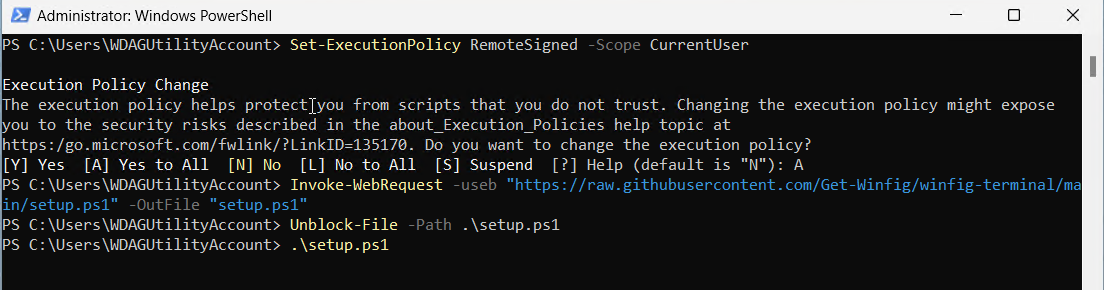
Download and run manually for offline environments:
Set-ExecutionPolicy RemoteSigned -Scope CurrentUser
# Download from GitHub
Invoke-WebRequest -useb "https://raw.githubusercontent.com/Get-Winfig/winfig-dots/refs/heads/main/Powertoys/setup.ps1" -OutFile "setup.ps1"
Unblock-File -Path .\setup.ps1
.\setup.ps1
Note
- Ensure you have the latest script version
- Manual updates required for new releases
- Verify script integrity before running
Post-Installation
- Restart PowerToys to apply new settings.
- Test Keybindings: Try enabled shortcuts (see below) to confirm functionality.
- Review Modules: Open PowerToys Settings to enable/disable or tweak modules.
- Customize Templates: Add files to your Templates folder for New+.
- Backup: Export your settings for future use or sharing.
Need Help?
- Visit the PowerToys documentation for advanced features.
- Open an issue if you encounter problems with the Winfig setup.
Tips & Usage Notes
- Custom Keymaps: Winfig PowerToys dotfiles use advanced, ergonomic shortcuts for every module.
- Templates: Add your own templates to
%USERPROFILE%\.Dotfiles\winfig-dots\Powertoys(symlinked toC:\Windows\Resources\Templates). - Safe Customization: All configs are modular—feel free to tweak or extend as you like!
- Minimal Bloat: Only essential modules and plugins are enabled for speed and clarity.
Keymaps & Enabled Modules
Advance
- Command Not Found:
- Environment Variables:
- Hosts File Editor:
- Registry Preview:
File Manager
- File Explorer add-ons:
- File Locksmith:
- Image Resizer:
-
New+: Templates:
%USERPROFILE%\.Dotfiles\winfig-dots\Powertoys→C:\Windows\Resources\Templates -
Peek: Keymap: Space
-
PowerRename:
Input / Output
- Mouse utilities: Only Find My Mouse is enabled (Shake mouse to view cursor position)
Windowing & Layouts
-
Always On Top: Shortcut: Win + Ctrl + T
-
Workspaces: Shortcut: Win + /
-
Always On Top (Alt): Shortcut: Ctrl + Shift + T
System Tools
-
ZoomIt:
- Ctrl + 1: Zoom
- Ctrl + 4: Live Zoom
- Ctrl + 2: Draw Without Zoom
- Ctrl + 3: Start Break Timer (1 min)
- Ctrl + 5: Record Video
- Ctrl + 6: Copy Region
-
Text Extractor: Shortcut: Win + T
-
Shortcut Guide: Shortcut: Alt + F1
-
PowerToys Run: Shortcut: Win + Space Enabled Plugins:
- Calculator
- PowerToys
- Programs
- URL Handler
-
Color Picker: Shortcut: Win + C
-
Awake:
- Advanced Paste:
Frequently Asked Questions (FAQ)
Can I use my own PowerToys settings?
Yes! Back up your current settings before applying Winfig dotfiles. You can always restore or merge your preferences later.
Is this safe to use?
All scripts and configs are open source. Review them on GitHub before running.
How do I update my PowerToys dotfiles?
Simply re-run the web install command to fetch and apply the latest version.
Troubleshooting
| Issue | Solution |
|---|---|
| Hotkeys not working | Check for conflicts with other apps or reassign in PowerToys Settings. |
| Module not enabled | Open PowerToys Settings and enable the desired module. |
| Settings not applied | Ensure you replaced the correct settings file and restarted PowerToys. |
| Script errors during install | Run PowerShell as Administrator and check execution policy. |
If your issue isn’t listed, check the PowerToys FAQ or Winfig GitHub Issues.