Lazygit: The Ultimate Terminal Git UI
Overview
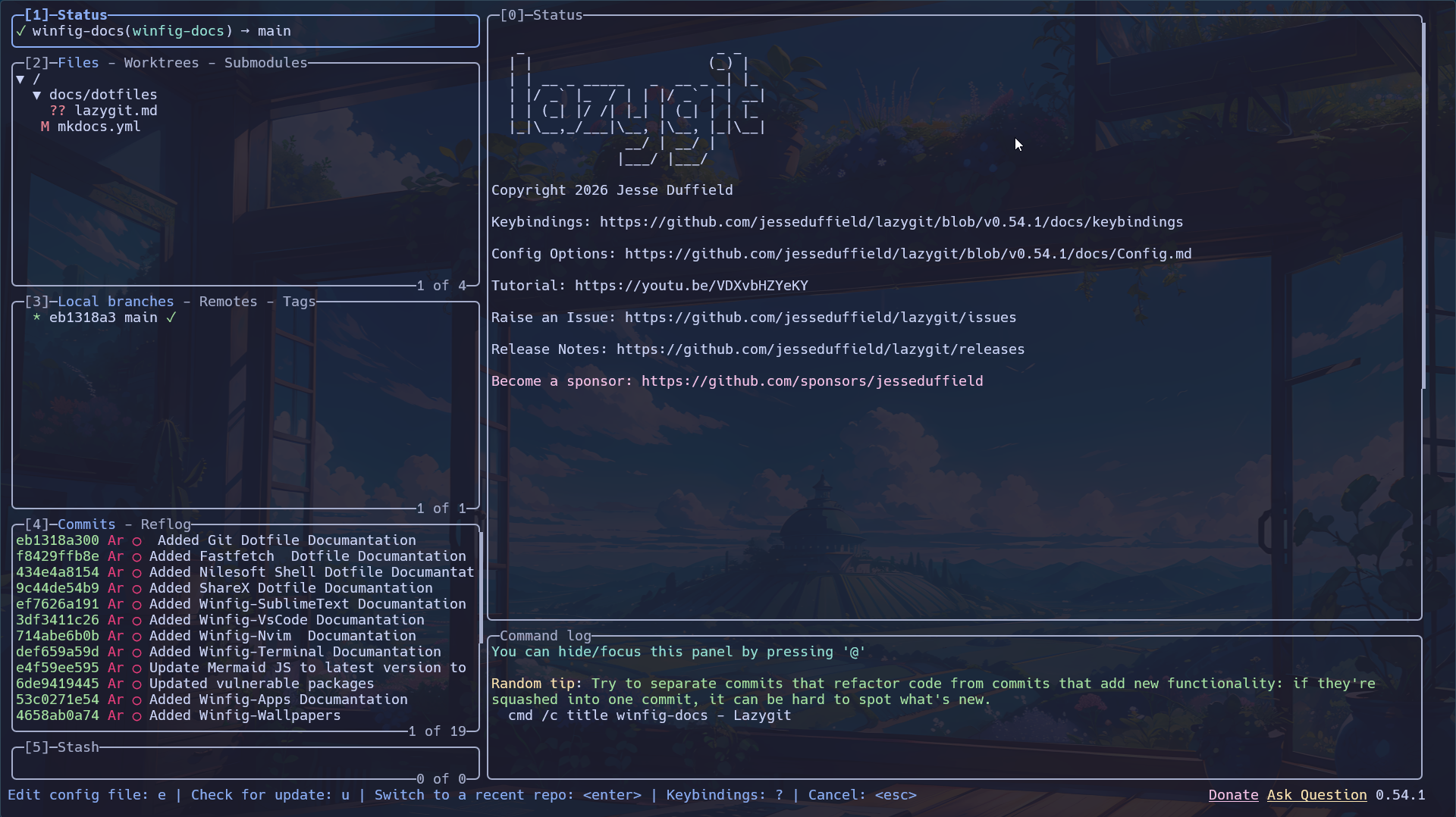
Lazygit is a fast, intuitive, and feature-rich terminal UI for Git. It lets you stage, commit, rebase, resolve conflicts, and manage branches—all with a beautiful, keyboard-driven interface. With Winfig Dots, Lazygit is pre-configured for a modern look, Catppuccin theme, and advanced workflow.
Features
- Catppuccin Themed UI: Custom colors and highlights for a beautiful, modern experience.
- Keyboard-Driven Workflow: Navigate, stage, commit, and manage branches with powerful keybindings.
- Rich Side Panels: View diffs, logs, stashes, and more in split or flexible layouts.
- Custom Commands: Open files in VS Code, view GitHub repos, and more with a single key.
- Emoji & Unicode Support: Full support for icons and emoji in commit messages and UI.
- Auto GPG/SSH Integration: Works seamlessly with your Winfig Git and GPG setup.
- Configurable Panels & Layouts: Flexible side/main panel splits, line wrapping, and more.
- Fast & Lightweight: Minimal resource usage, instant startup.
Requirements
- Lazygit installed on Windows 11
- GitHub CLI for GitHub integration and custom commands
- PowerShell 5+ for automation and scripting
- Git installed for dotfile management
- Administrator privileges for certain configurations
- Internet access for downloading dependencies
Quick Install
- Lazygit:
winget install --id JesseDuffield.Lazygit -e - Git:
winget install --id Git.Git -e - GitHub CLI:
winget install --id GitHub.cli -e - PowerShell 7 (optional, recommended):
winget install --id Microsoft.Powershell -e
Installation Methods
One-line installation - Downloads and runs automatically:
Invoke-RestMethod -useb https://raw.githubusercontent.com/Get-Winfig/winfig-dots/refs/heads/main/Lazygit/setup.ps1 | Invoke-Expression
Why Web Install?
- Always gets the latest version
- No manual download required
- Automatic script verification

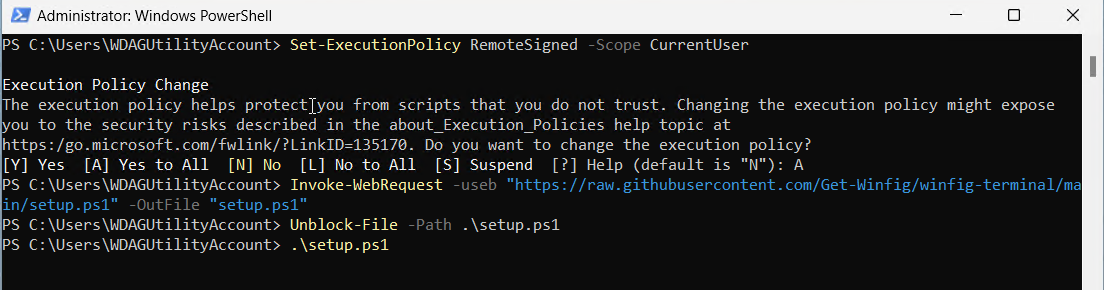
Download and run manually for offline environments:
Set-ExecutionPolicy RemoteSigned -Scope CurrentUser
# Download from GitHub
Invoke-WebRequest -useb "https://raw.githubusercontent.com/Get-Winfig/winfig-dots/refs/heads/main/Lazygit/setup.ps1" -OutFile "setup.ps1"
Unblock-File -Path .\setup.ps1
.\setup.ps1
Note
- Ensure you have the latest script version
- Manual updates required for new releases
- Verify script integrity before running
Configuration Highlights
- Catppuccin Theme: Lazygit is themed with Catppuccin colors for borders, highlights, and diffs.
- Custom Keybindings: Extensive keyboard shortcuts for every action—navigate, stage, commit, rebase, open in VS Code, and more.
- Panel & Layout Tweaks: Flexible side/main panel splits, line wrapping, and dashboard view.
- Custom Commands:
Open GitHub repo in browser (
B), open file in VS Code (V), and more. - Emoji Parsing: Commit messages and UI support emoji and icons.
- Auto GPG/SSH Integration: Works seamlessly with your Winfig Git and GPG setup.
Usage
Launch Lazygit
- Open a terminal in your project folder and run:
lazygit
Key Features in Use
- Navigate panels: Use Arrow Keys, Tab, and Shift+Tab to move between panels.
- Stage/unstage files: Press Space or S.
- Commit: Press C to commit, A to amend, Shift+C to open commit editor.
- Push/pull: Press P to push, p to pull.
- Branch management: Switch, create, or merge branches with intuitive shortcuts.
- Open in VS Code: Select a file and press V.
- Open GitHub repo: Press B from anywhere.
- Emoji in commits: Type emoji in commit messages for extra flair.
Advanced Tips
- Customize further: Edit your
lazygit.ymlto tweak colors, keybindings, and panel layouts. - Use with Winfig Git: Lazygit works seamlessly with your signed commits, Catppuccin diffs, and GPG/SSH setup.
- Command log: Toggle the command log for transparency on every Git action.
- Split diff view: Use split or unified diff modes for better code review.
- Update regularly: Stay up to date for new features and bug fixes.
Frequently Asked Questions (FAQ)
How do I change the Lazygit theme?
Edit the theme section in your lazygit.yml to use your favorite Catppuccin palette or custom colors.
How do I open files in VS Code from Lazygit?
Select a file and press V (custom command in your config).
How do I open the GitHub repo in my browser?
Press B from anywhere in Lazygit (custom command in your config).
Can I use emoji in commit messages?
Yes! Lazygit supports emoji and icons in commit messages and UI.
How do I update Lazygit?
Use your package manager (winget upgrade JesseDuffield.Lazygit) or download the latest release from GitHub.
Where is my Lazygit config file?
Usually at ~/.config/lazygit/config.yml or lazygit.yml in your home directory.
Troubleshooting
| Issue | Solution |
|---|---|
| Lazygit not found | Ensure it’s installed and in your PATH. Try restarting your terminal. |
| Theme/colors not applied | Check your lazygit.yml config and terminal color support. |
| Keybindings not working | Review your config for conflicts or typos. |
| Cannot open files in VS Code | Ensure VS Code is installed and in your PATH. |
| Git/GPG integration fails | Make sure your Git and GPG are set up via Winfig and available in PATH. |
| Emoji/icons not showing | Use a Nerd Font and a Unicode-capable terminal. |
If your issue isn’t listed, check the Lazygit documentation or Winfig GitHub Issues.