Git: Beautiful, Productive, and Secure Version Control
Overview
Git is the industry-standard distributed version control system, enabling you to track changes, collaborate, and manage codebases of any size. With Winfig Dots, Git is supercharged with a beautiful Catppuccin theme, advanced diffing, secure commit signing, and a streamlined workflow for modern development.
Features
- Catppuccin Themed Diffs: All diffs and logs are styled with the Catppuccin color palette via Delta for a visually appealing and readable experience.
- Delta Integration: Enhanced side-by-side diffs, syntax highlighting, and navigation for all Git operations.
- Conventional Commits: Commit messages follow the Conventional Commit format, enforced by a custom template.
- GPG Commit Signing: Secure your commits with GPG, ensuring authenticity and trust.
- VS Code as Editor & Merge Tool: Seamless editing and conflict resolution with Visual Studio Code.
- Git LFS Support: Effortlessly manage large files with Git LFS.
- Tig Integration: Use Tig, a powerful text-mode interface for Git, for fast, interactive repository exploration.
- Modular Config: Includes custom includes, global ignore, and reusable config snippets.
- Productivity Shortcuts: Custom aliases, pager, and diff tool settings for a faster workflow.
Requirements
- Git installed on Windows 11
- Git LFS installed on Windows 11
- Delta for enhanced diffs
- Visual Studio Code for editor and merge tool
- GPG for commit signing
- PowerShell 5+ for automation and scripting
- Git installed for dotfile management
- Administrator privileges for certain configurations
- Internet access for downloading dependencies
Quick Install
- Git:
winget install --id Git.Git -e - Git LFS:
winget install --id Git.Git-LFS -e - Visual Studio Code:
winget install --id Microsoft.VisualStudioCode -e - Delta:
choco install git-delta - GPG:
winget install --id GnuPG.GPG4Win -e - PowerShell 7 (optional, recommended):
winget install --id Microsoft.Powershell -e
Installation Methods
One-line installation - Downloads and runs automatically:
Invoke-RestMethod -useb https://raw.githubusercontent.com/Get-Winfig/winfig-dots/refs/heads/main/Git/setup.ps1 | Invoke-Expression
Why Web Install?
- Always gets the latest version
- No manual download required
- Automatic script verification

Download and run manually for offline environments:
Set-ExecutionPolicy RemoteSigned -Scope CurrentUser
# Download from GitHub
Invoke-WebRequest -useb "https://raw.githubusercontent.com/Get-Winfig/winfig-dots/refs/heads/main/Git/setup.ps1" -OutFile "setup.ps1"
Unblock-File -Path .\setup.ps1
.\setup.ps1
Note
- Ensure you have the latest script version
- Manual updates required for new releases
- Verify script integrity before running
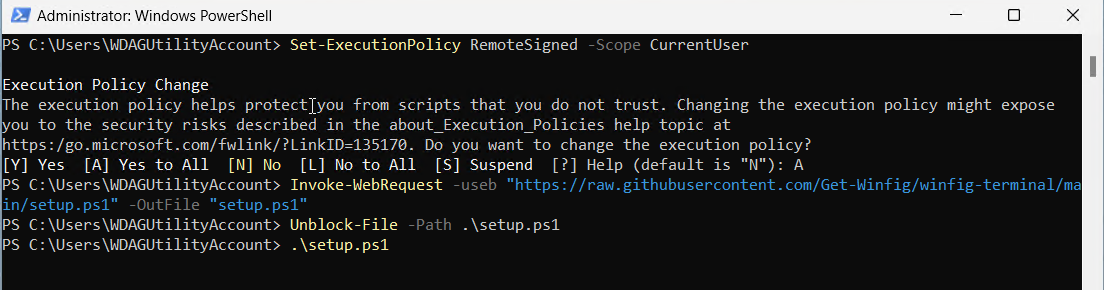
Automated Git Setup with Winfig
The included PowerShell setup script automates your entire Git environment configuration for Windows, making onboarding seamless and secure.
What the Script Does
- Configures UTF-8 output for full Unicode and emoji support in Git and terminals.
- Sets up color palettes and prompts for a beautiful, interactive experience.
- Creates all required dotfiles directories in your user profile.
- Checks for required tools: Git, GPG, and OpenSSH.
- Clones or updates your Winfig Dotfiles repo automatically.
- Generates or detects SSH keys for GitHub authentication.
- Generates or detects GPG keys for commit signing.
- Personalizes your
.gitconfigwith your name, email, GPG key, and GPG program path. - Symlinks all config files (gitconfig, gitignore, tigrc, Catppuccin theme, commit template) to your home directory.
- Creates a
setup-instructions.txtfile with your SSH and GPG public keys and step-by-step instructions for adding them to GitHub.
Adding Your Keys to GitHub
- Open
setup-instructions.txt(it opens automatically after setup, or find it in your user profile folder). - Copy the SSH public key and add it to GitHub:
- Go to GitHub → Settings → SSH and GPG keys → New SSH key
- Paste the key and give it a descriptive title.
- Copy the GPG public key and add it to GitHub:
- Go to GitHub → Settings → SSH and GPG keys → New GPG key
- Paste the key and give it a meaningful name.
- Test your setup:
- SSH:
ssh -T git@github.com - GPG: Make a signed commit:
git commit -S -m "Test signed commit"
Security Note
- The
setup-instructions.txtfile contains sensitive information. - Delete it after adding your keys to GitHub.
- Never share your private keys.
Why This Matters
- No manual key generation or config editing required.
- All keys and configs are ready for secure, signed, and authenticated GitHub usage.
- You get a beautiful, themed, and fully automated Git experience out of the box.
Usage
Everyday Git Workflow
-
Stage, commit, and push with style:
Your commit message will use the Conventional Commit format, guided by your custom template.git add . git commit git push -
View beautiful diffs and logs:
All output is themed with Catppuccin colors via Delta.git diff git log -
Resolve conflicts in VS Code:
VS Code opens with a merge view for easy conflict resolution Ctrl+Shift+P to open command palette in VS Code.git mergetool -
Sign commits with GPG: Commits are automatically signed using your configured GPG key.
-
Work with large files: Git LFS is enabled for seamless large file management.
Tig: Terminal Git UI
- Launch Tig for interactive repo browsing:
tig
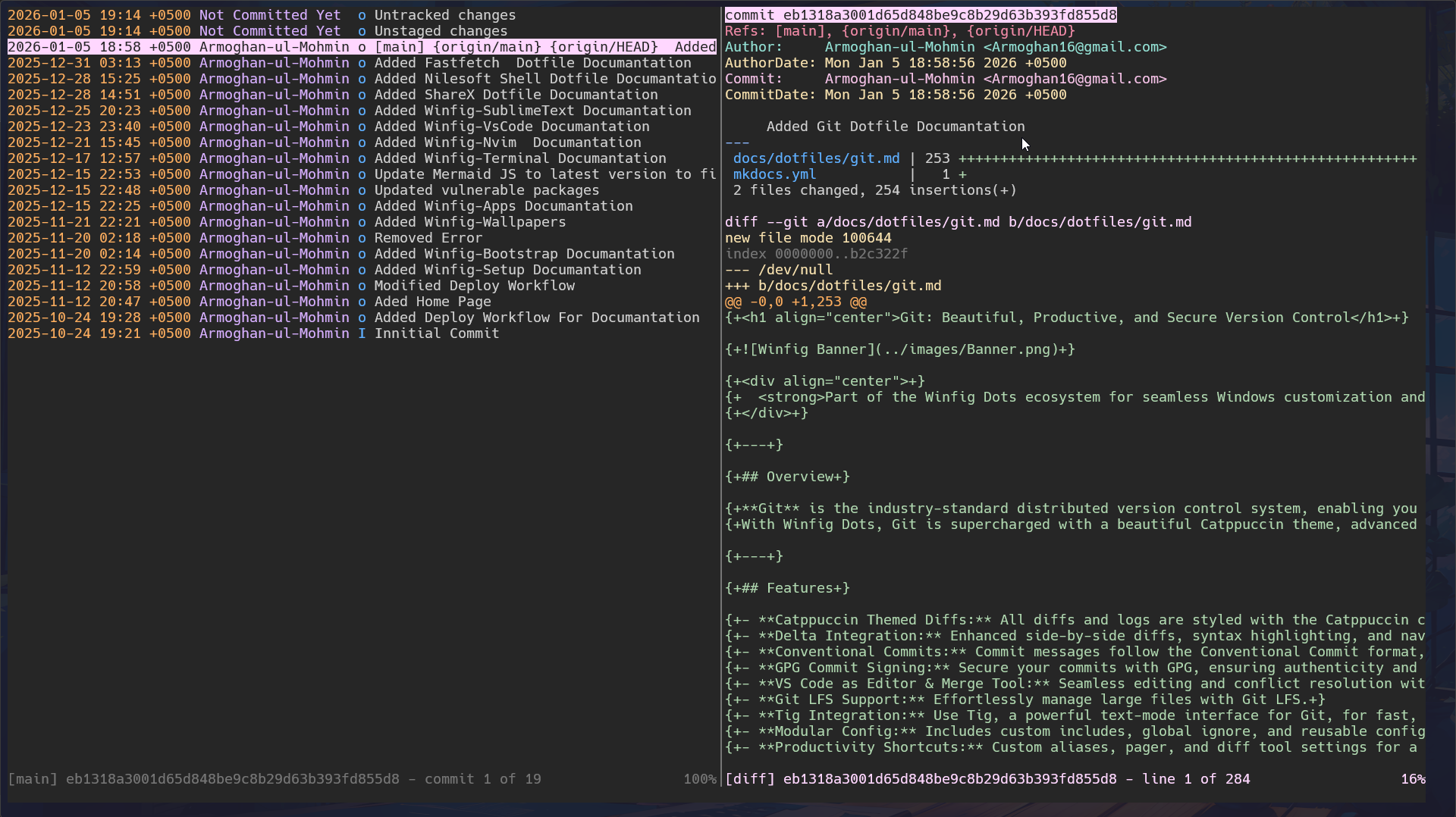
- Browse commit history, diffs, branches, and stashes in a fast, keyboard-driven interface.
- Use / to search, L to view logs, and D for detailed diffs—all with Catppuccin colors.
Example: Conventional Commit Message
Your commit template enforces the Conventional Commits standard:
feat(scope): add new feature

- Short summary of the change

BREAKING CHANGE: description of breaking change
Configuration Highlights
- Catppuccin Theme:
All diffs, logs, and status outputs are styled with Catppuccin via Delta (
features = catppuccin-macchiato,syntax-theme = catppuccin-frappe). - Delta as Pager & Diff Tool: Delta is set as the default pager and diff tool for all relevant commands.
- VS Code Integration: Both the editor and merge tool are set to VS Code for a seamless experience.
- GPG Signing: Commits are signed by default for security and authenticity.
- Global Ignore & Includes:
Uses a global
.gitignoreand includes modular config snippets (e.g., Catppuccin settings). - Custom Log Format: Logs are decorated with color, author, date, GPG status, and more for clarity.
Frequently Asked Questions (FAQ)
How do I enable/disable commit signing?
Edit the [commit] section in your .gitconfig and set gpgSign = true or false.
How do I use the Catppuccin theme for diffs?
Delta is configured in your .gitconfig to use Catppuccin themes for all diffs and logs.
How do I use my own GPG key?
Set your key ID in the [user] section (signingkey = <YOUR-GPG-KEY-ID>) and ensure GPG is installed.
How do I use Tig?
Just run tig in your repository. Use the keyboard to navigate, search, and view diffs.
How do I use the Conventional Commit template?
When you run git commit, the template appears. Follow the format for type, scope, and message.
How do I update Delta or other tools?
Use your package manager (choco upgrade git-delta, winget upgrade Git.Git).
Troubleshooting
| Issue | Solution |
|---|---|
| Diffs/logs not colored | Ensure Delta is installed and set as pager/diff tool in .gitconfig. |
| GPG signing fails | Check your GPG installation and key configuration. |
| Merge tool not opening | Ensure VS Code is installed and in your PATH. |
| Large files not tracked | Run git lfs install and track files with git lfs track. |
| Tig not found | Install Tig and ensure it’s in your PATH. |
| Commit template not used | Check [commit] template path in .gitconfig. |
If your issue isn’t listed, check the Git documentation or Winfig GitHub Issues.