Winfig Terminal: Your Complete Windows Configuration and Automation Framework
Overview
Winfig Terminal is a setup script that automates the customization and configuration of Windows Terminal to enhance your command-line experience. It allows you to easily configure profiles, themes, and settings to suit your workflow.
Features
- Easy Installation: Simple script to set up Windows Terminal with your preferred configurations.
- Custom Profiles: Pre-configured profiles for PowerShell, Command Prompt, WSL, and more.
- Theming: Apply custom themes and color schemes to enhance the visual appeal.
- Automation: Automate repetitive tasks and configurations with ease.
- Extensibility: Easily extend and modify configurations to fit your needs.
- Open Source: Fully open-source and community-driven.
Requirements
- Windows Terminal installed
- PowerShell 7+
- Git installed
- Administrator privileges for certain configurations
- Internet access for downloading dependencies
- Nerd Fonts for enhanced terminal appearance
- (Optional) Windows Subsystem for Linux (WSL) for Linux profiles
- (Optional) Distrobox inside WSL for Linux profiles
Quick Install
- Windows Terminal:
winget install --id Microsoft.WindowsTerminal -e - PowerShell 7:
winget install --id Microsoft.Powershell -e - Git:
winget install --id Git.Git -e - Nerd Fonts: Download from Nerd Fonts and install your favorite patched font.
- WSL:
wsl --install(Requires Windows 10 version 2004 and higher or Windows 11) - Distrobox: Follow the installation instructions on the Distrobox GitHub page.
Installation Methods
One-line installation - Downloads and runs automatically:
Invoke-RestMethod -useb https://raw.githubusercontent.com/Get-Winfig/winfig-terminal/main/setup.ps1 | Invoke-Expression
Why Web Install?
- Always gets the latest version
- No manual download required
- Automatic script verification

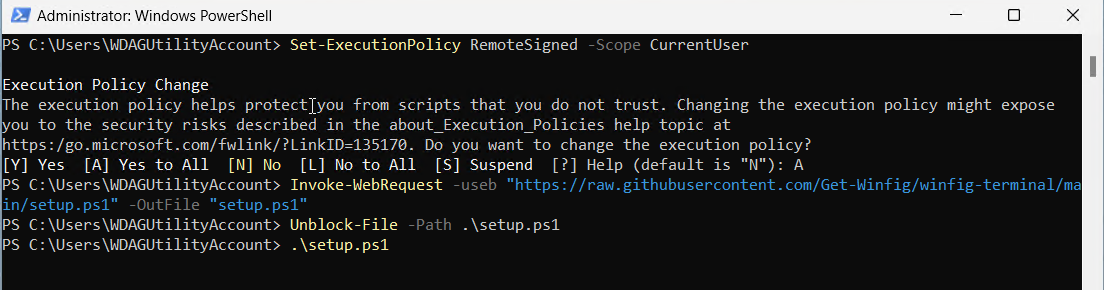
Download and run manually for offline environments:
Set-ExecutionPolicy RemoteSigned -Scope CurrentUser
# Download from GitHub
Invoke-WebRequest -useb "https://raw.githubusercontent.com/Get-Winfig/winfig-terminal/main/setup.ps1" -OutFile "setup.ps1"
Unblock-File -Path .\setup.ps1
.\setup.ps1
Note
- Ensure you have the latest script version
- Manual updates required for new releases
- Verify script integrity before running
Workflow
- Run the Setup Script: Execute the installation script using one of the methods above.
- Select Configurations: Choose your desired profiles, themes, and settings during the interactive prompts.
- Catppuchin theme: By Default the Catppuchin Mocha theme will be applied to your Windows Terminal so make sure to select it.
- Hack Nerd Fonts: By Default
Hack Nerd Fontsare set as the default font for all profiles. - Apply Changes: The script will automatically apply the configurations to Windows Terminal.
- Restart Windows Terminal: Close and reopen Windows Terminal to see the changes.
- Enjoy Your Customized Terminal: Start using your newly configured Windows Terminal!

Keybindings
Winfig Terminal includes several useful keybindings to enhance your productivity:
| Action | Keybinding |
|---|---|
| Copy | Ctrl + C |
| Paste | Ctrl + V |
| Open New Tab | Alt + T |
| Close Tab | Alt + Shift + Q |
| Duplicate Tab | Ctrl + Shift + D |
| Next Tab | Ctrl + Tab |
| Previous Tab | Ctrl + Shift + Tab |
| Rename Tab | Ctrl + Shift + R |
| Switch to Tab 1-9 | Alt + 1 ... Alt + 9 |
| Split Pane | Alt + P |
| Close Pane | Alt + Q |
| Resize Pane Left | Shift + Left |
| Resize Pane Right | Shift + Right |
| Resize Pane Up | Shift + Up |
| Resize Pane Down | Shift + Down |
| Move Focus Left | Alt + Left |
| Move Focus Right | Alt + Right |
| Move Focus Up | Alt + Up |
| Move Focus Down | Alt + Down |
| Toggle Fullscreen | F11 or Alt + Enter |
| Open Settings | Ctrl + , |
| Command Palette | Ctrl + Shift + P |
💡 Tip: You can further customize these keybindings in your Windows Terminal settings file!
Uninstall & Revert
To uninstall Winfig Terminal and revert to your previous Windows Terminal settings, follow these steps:
-
Navigate to the Windows Terminal Settings Folder: Open PowerShell and run:
cd $env:LOCALAPPDATA\Packages\Microsoft.WindowsTerminal_8wekyb3d8bbwe\LocalState -
Note about Symlinked Settings: If you used Winfig Terminal's dotfiles integration, your
settings.jsonhere is a symlink to%USERPROFILE%\.Dotfiles\winfig-terminal\settings.json. -
To break the link and restore default behavior, first remove the symlink:
Remove-Item -Path settings.json -
Then, either let Windows Terminal regenerate a default
settings.jsonor copy your backup or a default config into this folder. -
Backup Current Settings (if not a symlink): It's a good idea to back up your current settings before making changes:
Copy-Item -Path settings.json -Destination settings.json.bak -
Restore Previous Settings: If you have a backup of your previous settings, you can restore it by copying it back:
Copy-Item -Path "path\to\your\backup\settings.json" -Destination settings.json -
Restart Windows Terminal: Close and reopen Windows Terminal to apply the changes.
Tip: If you want to fully remove Winfig Terminal's configuration, also delete or archive the
%USERPROFILE%\.Dotfiles\winfig-terminal\settings.jsonfile.
Frequently Asked Questions (FAQ)
Is Winfig Terminal safe to use?
Yes. Winfig Terminal is open-source and the script is available for review on GitHub. Always ensure you download the script from the official repository.
Can I customize the configurations after installation?
Absolutely! You can modify the settings.json file in Windows Terminal to further customize your setup.
How do I update Winfig Terminal?
To update, simply rerun the installation script using the web install method to get the latest configurations.
What if I encounter issues during installation?
If you face any issues, please check the GitHub repository for troubleshooting tips or open an issue for assistance.
Troubleshooting Guide
If you encounter any issues while using Winfig Terminal, here are some common problems and their solutions:
| Issue | Solution |
|---|---|
| Winfig Terminal is not launching | Ensure that you have the latest version of Windows Terminal installed. |
| Configuration changes are not applied | Double-check the settings.json file for any syntax errors. |
| Performance issues | Try disabling any unnecessary features or extensions in Windows Terminal. |
| Script fails to run | Make sure you have the required permissions and that PowerShell execution policy allows script running. |
| Profiles not showing up | Verify that the profiles are correctly defined in the settings.json file. |
| Color schemes not applied | Ensure that the color scheme definitions are correctly formatted in the settings file. |
| Keybindings not working | Check for conflicts with other applications or custom keybindings in Windows Terminal. |
| Font rendering issues | Make sure you have installed a Nerd Font and set it as the default font in your profiles. |
| Issues with WSL profiles | Ensure that WSL is properly installed and configured on your system. |
| Unable to update Winfig Terminal | Check your internet connection and ensure you are using the web install method. |