Komorebi: Advanced Tiling Window Management for Windows
Overview
Komorebi is a fast, feature-rich tiling window manager for Windows, bringing advanced workspace, stacking, and automation features to your desktop. With Winfig Dots, Komorebi is pre-configured for beautiful borders, smooth animations, workspace rules, and seamless integration with whkd for ergonomic keyboard-driven workflows.
Features
- True tiling window management on Windows
- Customizable workspaces with per-app rules
- Beautiful rounded borders and Catppuccin-inspired colors
- Smooth animations (144fps, cubic easing)
- Stack, monocle, and BSP layouts
- Keyboard-driven navigation and manipulation (via whkd)
- Transparency, floating, and monocle toggles
- Seamless integration with Winfig Dots ecosystem
Requirements
- Komorebi v0.1.28+
- whkd for hotkey handling
- PowerShell 5+ for scripting
- Windows 11 (recommended)
- Nerd Font for icons and symbols
- Administrator privileges for installation
Quick Install
- Komorebi:
winget install --id LGUG2Z.Komorebi -e - whkd:
winget install --id LGUG2Z.whkd -e - Git:
winget install --id Git.Git -e - PowerShell 7 (optional, recommended):
winget install --id Microsoft.Powershell -e - Nerd Font: Download and install from Nerd Fonts
Installation Methods
One-line installation - Downloads and runs automatically:
```powershell title="Run in Administrative PowerShell"
Invoke-RestMethod -useb https://raw.githubusercontent.com/Get-Winfig/winfig-dots/refs/heads/main/Komorebic/setup.ps1 | Invoke-Expression
```
!!! success "Why Web Install?"
- Always gets the latest version
- No manual download required
- Automatic script verification

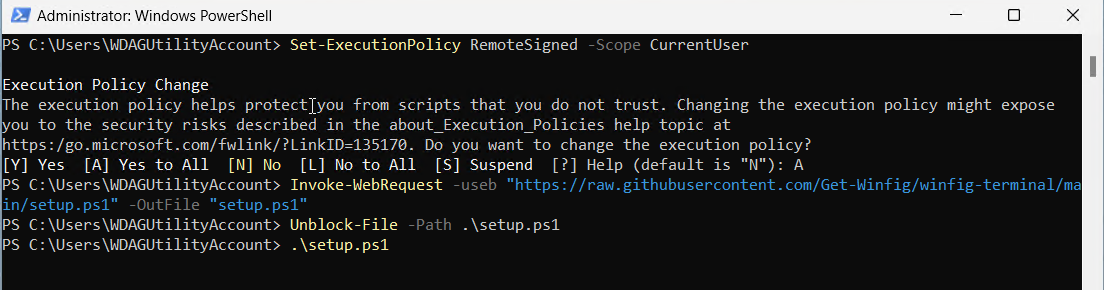
Download and run manually for offline environments:
Set-ExecutionPolicy RemoteSigned -Scope CurrentUser
# Download from GitHub
Invoke-WebRequest -useb "https://raw.githubusercontent.com/Get-Winfig/winfig-dots/refs/heads/main/Komorebic/setup.ps1" -OutFile "setup.ps1"
Unblock-File -Path .\setup.ps1
.\setup.ps1
Note
- Ensure you have the latest script version
- Manual updates required for new releases
- Verify script integrity before running
Hotkey Reference (whkdrc)
All navigation and manipulation is keyboard-driven via whkd. Below is a categorized table of all hotkeys from your real configuration:
Focus Windows
| Hotkey | Action |
|---|---|
| Alt+H | Focus left |
| Alt+J | Focus down |
| Alt+K | Focus up |
| Alt+L | Focus right |
| Alt+Shift+[ | Cycle focus previous |
| Alt+Shift+] | Cycle focus next |
Move Windows
| Hotkey | Action |
|---|---|
| Alt+Shift+H | Move left |
| Alt+Shift+J | Move down |
| Alt+Shift+K | Move up |
| Alt+Shift+L | Move right |
| Alt+Shift+Enter | Promote window |
Stack Windows
| Hotkey | Action |
|---|---|
| Alt+Left | Stack left |
| Alt+Down | Stack down |
| Alt+Up | Stack up |
| Alt+Right | Stack right |
| Alt+; | Unstack |
| Alt+[ | Cycle stack previous |
| Alt+] | Cycle stack next |
Resize
| Hotkey | Action |
|---|---|
| Alt++ | Resize horizontal increase |
| Alt+- | Resize horizontal decrease |
| Alt+Shift++ | Resize vertical increase |
| Alt+Shift+- | Resize vertical decrease |
Manipulate Windows
| Hotkey | Action |
|---|---|
| Alt+T | Toggle float |
| Alt+Shift+F | Toggle monocle |
Window Manager Options
| Hotkey | Action |
|---|---|
| Alt+Shift+R | Retile |
| Alt+P | Toggle pause |
Layouts
| Hotkey | Action |
|---|---|
| Alt+X | Flip layout horizontal |
| Alt+Y | Flip layout vertical |
Workspaces
| Hotkey | Action |
|---|---|
| Alt+1 | Focus workspace 1 |
| Alt+2 | Focus workspace 2 |
| Alt+3 | Focus workspace 3 |
| Alt+4 | Focus workspace 4 |
| Alt+5 | Focus workspace 5 |
| Alt+6 | Focus workspace 6 |
| Alt+7 | Focus workspace 7 |
| Alt+8 | Focus workspace 8 |
| Alt+9 | Focus workspace 9 |
| Alt+0 | Focus workspace 10 |
Move Windows Across Workspaces
| Hotkey | Action |
|---|---|
| Alt+Shift+1 | Move to workspace 1 |
| Alt+Shift+2 | Move to workspace 2 |
| Alt+Shift+3 | Move to workspace 3 |
| Alt+Shift+4 | Move to workspace 4 |
| Alt+Shift+5 | Move to workspace 5 |
| Alt+Shift+6 | Move to workspace 6 |
| Alt+Shift+7 | Move to workspace 7 |
| Alt+Shift+8 | Move to workspace 8 |
| Alt+Shift+9 | Move to workspace 9 |
| Alt+Shift+0 | Move to workspace 10 |
Customization Tips
- Edit
komorebi.jsonto change border colors, animation, or workspace rules - Edit
whkdrcto remap hotkeys or add new commands - Use Nerd Fonts for best stackbar appearance
- Combine with AutoHotkey for even more automation
Frequently Asked Questions (FAQ)
How do I add or change hotkeys?
Edit your whkdrc file in any text editor. See the whkd documentation for syntax help.
How do I change workspace rules or layouts?
Edit komorebi.json and reload Komorebi. You can assign apps to workspaces and set layouts per workspace.
How do I make Komorebi/whkd run at startup?
Place shortcuts to both in the Windows Startup folder (shell:startup).
Can I use Komorebi with other automation tools?
Yes! Komorebi and whkd are designed to work alongside AutoHotkey, Winfig Dots, and other automation tools.
Troubleshooting
| Issue | Solution |
|---|---|
| Komorebi not tiling windows | Ensure Komorebi is running and config is valid. Check logs for errors. |
| Hotkey not working | Make sure whkd is running and whkdrc is correct. |
| Borders/colors not applied | Check komorebi.json for color codes and border settings. |
| Workspace rules not working | Ensure app IDs are correct and Komorebi is reloaded after changes. |
| Transparency not working | Make sure transparency is enabled and supported by your system. |
If your issue isn’t listed, check the Komorebi documentation, whkd documentation, or Winfig GitHub Issues.