Fastfetch: Blazing-Fast System Info for Windows
Overview
Fastfetch is a blazing-fast, open-source system information tool for Windows, Linux, and macOS. It displays your OS, hardware, desktop environment, and more in a beautiful, customizable ASCII or logo format—perfect for terminal screenshots, dotfiles, and showing off your setup. With Winfig Dots, Fastfetch is pre-configured for Windows 11 and ready to use out of the box.
Features
- Instant System Info: See OS, CPU, GPU, RAM, disk, shell, terminal, and more in one command.
- Custom Logos & ASCII Art: Display Windows, Linux, or custom logos in your terminal.
- Highly Configurable: Tweak colors, modules, output format, and more with config files or command-line flags.
- Cross-Platform: Works on Windows, Linux, and macOS.
- Fast & Lightweight: Minimal resource usage, instant output.
- Dotfiles Friendly: Easily integrate with your dotfiles and scripts for a personalized look.
Requirements
- Fastfetch installed on Windows 11
- PowerShell 5+ for automation and scripting
- Git installed for dotfile management
- Administrator privileges for certain configurations
- Internet access for downloading dependencies
Quick Install
- Fastfetch:
winget install --id Fastfetch-cli.Fastfetch -e - Git:
winget install --id Git.Git -e - PowerShell 7 (optional, recommended):
winget install --id Microsoft.Powershell -e
Installation Methods
One-line installation - Downloads and runs automatically:
Invoke-RestMethod -useb https://raw.githubusercontent.com/Get-Winfig/winfig-dots/main/Fastfetch/setup.ps1 | Invoke-Expression
Why Web Install?
- Always gets the latest version
- No manual download required
- Automatic script verification

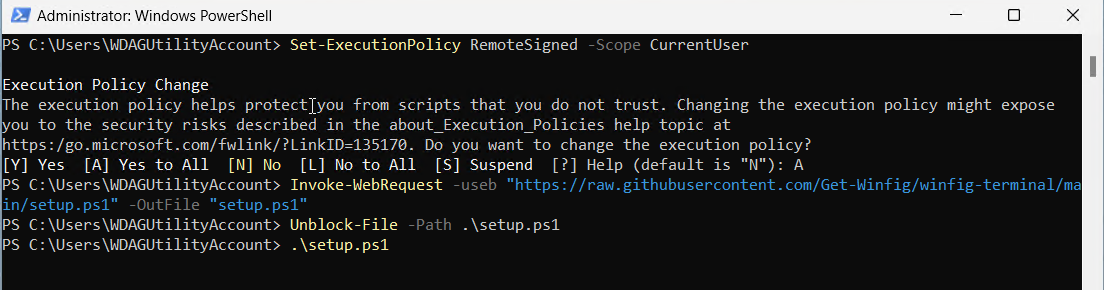
Download and run manually for offline environments:
Set-ExecutionPolicy RemoteSigned -Scope CurrentUser
# Download from GitHub
Invoke-WebRequest -useb "https://raw.githubusercontent.com/Get-Winfig/winfig-dots/main/Fastfetch/setup.ps1" -OutFile "setup.ps1"
Unblock-File -Path .\setup.ps1
.\setup.ps1
Note
- Ensure you have the latest script version
- Manual updates required for new releases
- Verify script integrity before running
Usage
After installation, open a terminal and run:
fastfetch
You’ll see a beautiful summary of your system info with a Custom logo.
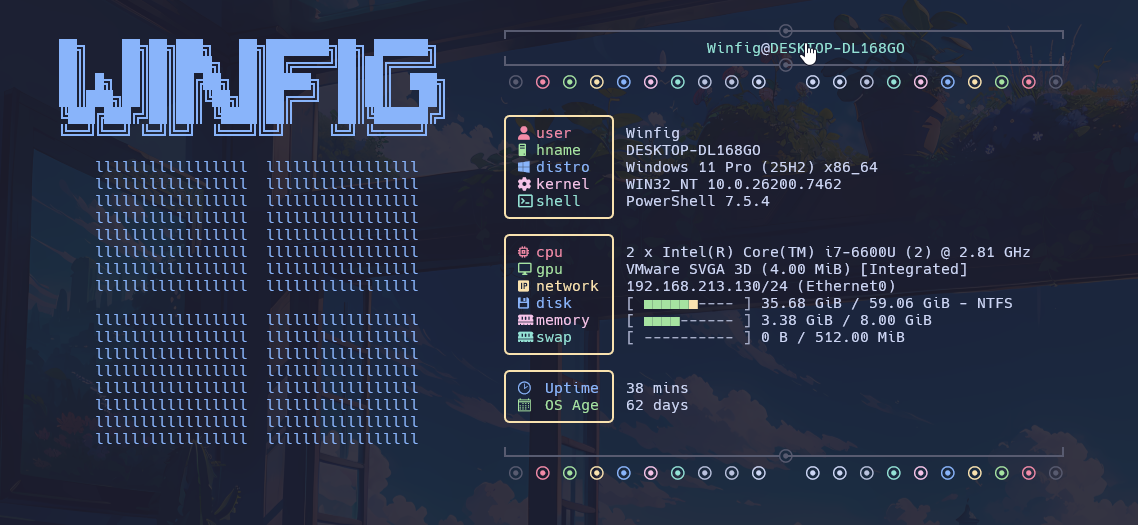
To use a custom config, edit your Fastfetch config file or pass options via command line. Integrate Fastfetch in your PowerShell profile or dotfiles for instant system info on startup.
Frequently Asked Questions (FAQ)
How do I customize the Fastfetch output?
Use command-line flags (see fastfetch --help) or edit your config file for colors, modules, and logo.
Can I use Fastfetch on Linux or macOS?
Yes! Fastfetch is cross-platform and works on Windows, Linux, and macOS.
Where is the Fastfetch config file?
By default, it’s in your user profile folder. You can specify a custom config with --config.
How do I update Fastfetch?
Re-run the install script or use winget upgrade Fastfetch-cli.Fastfetch.
How do I show a custom logo?
Use the --logo flag, e.g. fastfetch --logo Windows or fastfetch --logo <your-logo>.
Troubleshooting
| Issue | Solution |
|---|---|
| Fastfetch not found | Ensure it’s installed and in your PATH. Try restarting your terminal. |
| Output looks wrong | Check your terminal font and encoding. Use a Nerd Font for best results. |
| Modules missing | Update Fastfetch or check your config for correct module names. |
| Script fails to run | Run PowerShell as Administrator and check your execution policy. |
| Logo not showing | Use the --logo flag and verify your terminal supports Unicode/ASCII art. |
If your issue isn’t listed, check the Fastfetch documentation or Winfig GitHub Issues.