Nilesoft Shell: Better Context Menu
Overview
Nilesoft Shell is a powerful, open-source context menu manager for Windows. It lets you fully customize and extend your right-click menu with scripts, commands, and themes—making your workflow faster, more organized, and more productive. With Winfig Dots, you get a modular, ready-to-use configuration for developers and power users.
Features
- Custom Context Menus: Add, remove, or reorganize right-click menu items for files, folders, and backgrounds.
- Script Integration: Run batch, PowerShell, or custom scripts directly from the context menu.
- Developer Tools: Quickly access Git, NPM, Hugo, and more from any folder.
- Theming: Beautiful Catppuccin-based themes for a modern look.
- Modular Imports: Easily enable/disable menu modules (develop, file-manage, goto, etc.) for a tailored experience.
- Productivity Shortcuts: One-click access to frequent actions, terminals, and file management tools.
Advanced Workflow: Supercharged Context Menu
With this setup, your right-click menu becomes a true developer control center:
- Open any project or file in your favorite editor (VS Code, Sublime, Nvim, Neovide, Notepad).
- Full Git integration: Init, add, commit, amend, push, fetch, pull, status, logs, branches, remotes—all from the menu.
- Project automation: Run NPM, Hugo, UV, NVM commands, or your own scripts, instantly.
- Universal file runner: Run any file with a single click.
- Switch themes or update menu modules on the fly.
- Modular: Add/remove menu modules or scripts to fit your workflow.
Why This Workflow Rocks
- Zero Friction: No more searching for scripts or typing commands—everything is one click away.
- Consistent Across Projects: The same menu works in any folder, making onboarding and daily work faster.
- Fully Customizable: Add your own tools, scripts, or menu items as your needs evolve.
Requirements
- Nilesoft Shell installed on Windows 11
- PowerShell 5+ for automation and scripting
- Git installed for dotfile management
- Administrator privileges for certain configurations
- Internet access for downloading dependencies
- Nerd Fonts (Hack Nerd Font) for enhanced terminal and UI appearance
Quick Install
- Nilesoft Shell:
winget install --id -e - Git:
winget install --id Git.Git -e - PowerShell 7 (optional, recommended):
winget install --id Microsoft.Powershell -e - FiraCode Nerd Fonts: Download from Nerd Fonts and install your favorite patched font.
Dotfiles Structure
Your Nilesoft Shell dotfiles are organized for modularity and easy customization:
Nilesoft Shell/
├── shell.nss
├── imports/
│   ├── develop.nss
│   ├── file-manage.nss
│   ├── goto.nss
│   ├── images.nss
│   ├── modify.nss
│   ├── taskbar.nss
│   ├── terminal.nss
│   └── theme.nss
├── scripts/
│   ├── git.bat
│   ├── npm.bat
│   ├── hugo.bat
│   ├── uv.bat
│   ├── nvm.bat
│   ├── run.bat
│   ├── git-amend.bat
│   ├── git-clone.bat
│   ├── git-commit.bat
│   └── show-branches.ps1
│   └── show-remotes.ps1
├── themes/
│   ├── catppuccin-latte-blue.nss
│   ├── catppuccin-macchiato-blue.nss
│   └── catppuccin-mocha-blue.nss
- shell.nss: Main Nilesoft Shell config, imports all modules and themes.
- imports/: Modular menu definitions (enable/disable features by editing imports in
shell.nss). - scripts/: Helper scripts for context menu actions (Git, NPM, Hugo, etc.).
- themes/: Beautiful Catppuccin-based themes for a modern look.
Installation Methods
One-line installation - Downloads and runs automatically:
Invoke-RestMethod -useb https://raw.githubusercontent.com/Get-Winfig/winfig-dots/refs/heads/main/Nilesoft%20Shell/setup.ps1 | Invoke-Expression
Why Web Install?
- Always gets the latest version
- No manual download required
- Automatic script verification

Download and run manually for offline environments:
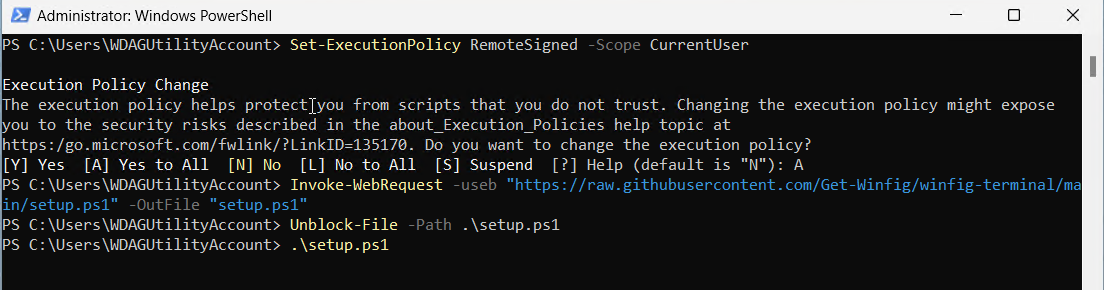
Set-ExecutionPolicy RemoteSigned -Scope CurrentUser
# Download from GitHub
Invoke-WebRequest -useb "https://raw.githubusercontent.com/Get-Winfig/winfig-dots/refs/heads/main/Nilesoft%20Shell/setup.ps1" -OutFile "setup.ps1"
Unblock-File -Path .\setup.ps1
.\setup.ps1
Note
- Ensure you have the latest script version
- Manual updates required for new releases
- Verify script integrity before running
Post-Installation
- Restart Nilesoft Shell to apply all new menu items and themes.
- Right-click anywhere in Explorer to see your enhanced context menu.
- Try Developer Actions: Use the context menu to run Git, NPM, or open terminals directly from any folder.
- Switch Themes: Go to the Nilesoft Shell settings or use the context menu to change your theme.
- Customize: Edit
shell.nssor any file inimports/to enable, disable, or rearrange menu modules.
Need Help?
- Visit the Nilesoft Shell documentation for advanced features.
- Open an issue if you encounter problems with the Winfig setup.

Tips & Usage Notes
- Modular Imports: Enable or disable menu modules by editing the
importssection inshell.nss. - Script Shortcuts: Add your own batch or PowerShell scripts to the
scripts/folder and link them in your menu. - Theme Switching: Try different Catppuccin themes from the
themes/folder for a personalized look. - Restore Defaults: If you want to revert, simply restore your backup or replace
shell.nsswith the default config. - Update Easily: Re-run the setup script anytime to update or reapply your configuration.
Frequently Asked Questions (FAQ)
How do I enable or disable menu modules?
Edit the imports section in shell.nss to include or exclude any .nss file from the imports/ folder.
Can I add my own scripts to the menu?
Yes! Place your batch or PowerShell scripts in the scripts/ folder and reference them in your menu modules.
How do I change the theme?
Use the context menu or edit the themes section in shell.nss to switch between Catppuccin themes.
Is it safe to run the setup script?
The script is open source and can be reviewed on GitHub. It backs up your existing config before making changes.
How do I restore my old menu?
Restore your backup or replace shell.nss with your previous configuration file.
How do I update my Nilesoft Shell dotfiles?
Simply re-run the web install command to fetch and apply the latest version.
Troubleshooting
| Issue | Solution |
|---|---|
| Menu items not appearing | Restart Nilesoft Shell or reload the config. Check for syntax errors in shell.nss. |
| Scripts not running | Ensure the script path is correct and the script has execute permissions. |
| Theme not applied | Make sure the theme file exists in the themes/ folder and is referenced in shell.nss. |
| Error after update | Restore your backup or review recent changes in your config files. |
| Setup script fails | Run PowerShell as Administrator and check your execution policy. |
If your issue isn’t listed, check the Nilesoft Shell documentation or Winfig GitHub Issues.