Starship: The Catppuccin-Powered Prompt for Any Shell
Overview
Starship is a blazing-fast, highly customizable prompt for any shell—PowerShell, Bash, Zsh, and more. It brings beautiful icons, contextual info, and a Catppuccin Mocha palette to your terminal, making every session productive and visually stunning. With Winfig Dots, Starship is pre-configured for Windows with a modern, icon-rich, and language-aware prompt.
Features
- Catppuccin Mocha Palette: Gorgeous, modern colors for every segment and symbol.
- Multi-Language Support: Shows version and context for Node.js, Python, Rust, Go, Java, PHP, C, Lua, and more.
- Powerful Git Integration: Branch, status, and icons for every repo state.
- OS & Directory Icons: Custom icons for OS, folders, and common directories.
- Segmented Powerline Style: Beautiful, multi-color segments with Unicode separators.
- Fast & Cross-Shell: Works with PowerShell, Bash, Zsh, and more.
- Customizable Prompt: Easily tweak format, palette, and modules.
Requirements
- Starship installed on Windows 11
- Nerd Font for icons and symbols
- PowerShell 5+ or any modern shell
- Git for Git integration
- Administrator privileges for certain configurations
- Internet access for downloading dependencies
Quick Install
- Starship:
winget install --id Starship.Starship -e - Nerd Font: Download and install from Nerd Fonts
- PowerShell 7 (optional, recommended):
winget install --id Microsoft.Powershell -e
Installation Methods
One-line installation - Downloads and runs automatically:
Invoke-RestMethod -useb https://raw.githubusercontent.com/Get-Winfig/winfig-dots/refs/heads/main/Starship/setup.ps1 | Invoke-Expression
Why Web Install?
- Always gets the latest version
- No manual download required
- Automatic script verification

Download and run manually for offline environments:
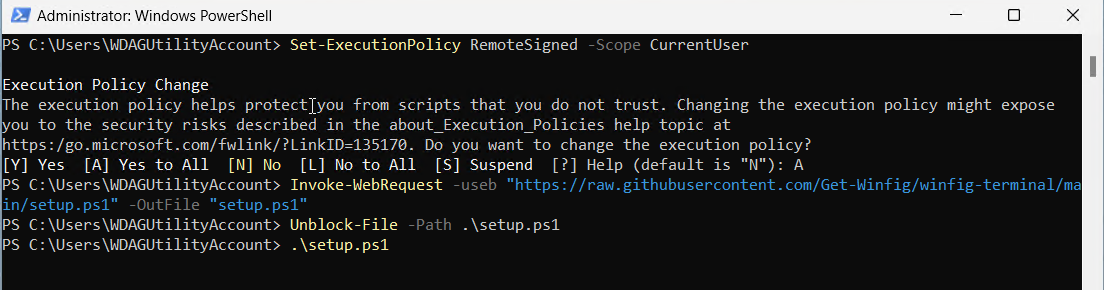
Set-ExecutionPolicy RemoteSigned -Scope CurrentUser
# Download from GitHub
Invoke-WebRequest -useb "https://raw.githubusercontent.com/Get-Winfig/winfig-dots/refs/heads/main/Starship/setup.ps1" -OutFile "setup.ps1"
Unblock-File -Path .\setup.ps1
.\setup.ps1
Note
- Ensure you have the latest script version
- Manual updates required for new releases
- Verify script integrity before running
Configuration Highlights
- Catppuccin Mocha Palette: All segments use the Catppuccin Mocha color palette for a cohesive, modern look.
- Powerline Segments: Unicode separators and multi-color backgrounds for each module.
- OS & Directory Icons: Custom icons for Windows, Linux, macOS, and common folders.
- Language Modules: Shows version and icon for Node.js, Python, Rust, Go, Java, PHP, C, Lua, and more.
- Git Branch & Status: Beautiful icons and color-coded status for every repo state.
- Time, Kubernetes, Docker: Contextual info for cloud/dev workflows.
- Prompt Symbols: Custom success, error, and Vim mode symbols.

Usage
Enable Starship in Your Shell
- PowerShell:
Add this to your
$PROFILE:Invoke-Expression (&starship init powershell) - Bash:
Add this to your
~/.bashrc:eval "$(starship init bash)" - Zsh:
Add this to your
~/.zshrc:eval "$(starship init zsh)"
What You Get
- Beautiful, icon-rich prompt with Catppuccin colors and Powerline segments
- Context-aware info: Git branch/status, language versions, OS, time, Kubernetes, Docker, and more
- Fast, async rendering for instant feedback
Frequently Asked Questions (FAQ)
How do I change the Starship theme?
Edit the palette and color values in your starship.toml. Winfig Dots uses Catppuccin Mocha by default.
How do I add Starship to my shell?
Add the appropriate starship init command to your shell profile (see Usage section).
How do I get the icons to show?
Install a Nerd Font and set it as your terminal font.
How do I customize segments or order?
Edit the format string in your starship.toml to add, remove, or rearrange modules.
How do I update Starship?
Use your package manager (winget upgrade Starship.Starship) or download the latest release from GitHub.
Where is my Starship config file?
Usually at %USERPROFILE%\.config\starship.toml on Windows or ~/.config/starship.toml on Linux/macOS.
Troubleshooting
| Issue | Solution |
|---|---|
| Starship not found | Ensure it’s installed and in your PATH. Try restarting your terminal. |
| Icons not showing | Install a Nerd Font and set it as your terminal font. |
| Colors/theme not applied | Check your starship.toml and terminal color support. |
| Prompt not loading | Ensure you added the starship init command to your shell profile. |
| Git info missing | Make sure Git is installed and the folder is a Git repo. |
If your issue isn’t listed, check the Starship documentation or Winfig GitHub Issues.