ShareX: Effortless Screenshot & Capture Automation
Overview
ShareX is a powerful, open-source screenshot and screen recording tool for Windows. With Winfig’s curated ShareX dotfiles, you get a pre-configured setup for fast, consistent, and automated captures—perfect for documentation, sharing, and productivity.
Features
- Custom Hotkeys: Instantly capture regions, windows, or the entire screen.
- Automated Workflows: Auto-upload, copy to clipboard, or save to custom folders.
- Image Editing: Built-in editor for quick annotations and highlights.
- GIF & Video Capture: Record your screen as GIFs or videos with one click.
- Cloud Integration: Seamless uploads to Imgur, Dropbox, Google Drive, and more.
Requirements
- ShareX installed on Windows 11
- PowerShell 5+ for automation and scripting
- Git installed for dotfile management
- Administrator privileges for certain configurations
- Internet access for downloading dependencies
- Nerd Fonts (FiraCode) for enhanced terminal and UI appearance
Quick Install
- ShareX:
winget install --id ShareX.ShareX -e - Git:
winget install --id Git.Git -e - PowerShell 7 (optional, recommended):
winget install --id Microsoft.Powershell -e - FiraCode Nerd Fonts: Download from Nerd Fonts and install your favorite patched font.
Why Nerd Fonts?
Nerd Fonts provide extra icons and glyphs, making your ShareX menus and scripts look cleaner and more readable—especially if you use terminal-based workflows.
Administrator Privileges
Some advanced ShareX automations or integrations (like custom uploaders or scripting) may require you to run ShareX or PowerShell as an administrator.
Dotfiles Structure
Your ShareX dotfiles are organized for modularity and easy customization:
- ApplicationConfig.json: Core ShareX settings for UI, workflows, and preferences.
- HotkeysConfig.json: Default ShareX keymaps (no custom remapping; uses ShareX defaults for familiarity).
- UploadersConfig.json: Pre-configured upload destinations and automation.
- themes/: Ready-to-use ShareX themes for a personalized look.
- ImageEffects/: Custom image effects for screenshots (macOS, Ubuntu, Windows styles, and more).
- ShareX-backup.sxb: Backup of Winfig settings for easy restore.
Installation Methods
One-line installation - Downloads and runs automatically:
Invoke-RestMethod -useb https://raw.githubusercontent.com/Get-Winfig/winfig-dots/main/ShareX/setup.ps1 | Invoke-Expression
Why Web Install?
- Always gets the latest version
- No manual download required
- Automatic script verification

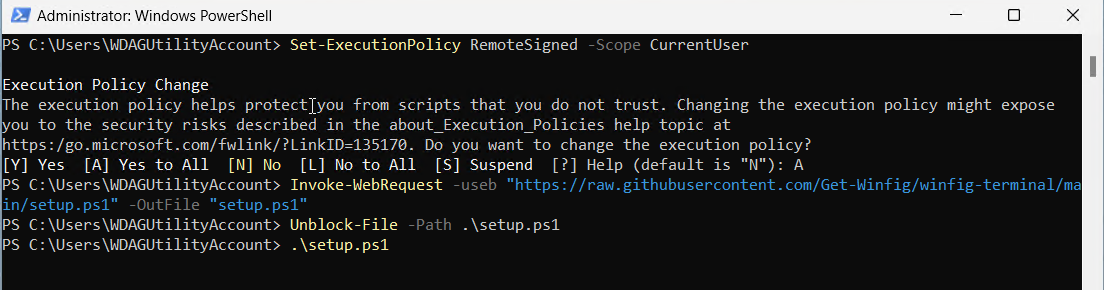
Download and run manually for offline environments:
Set-ExecutionPolicy RemoteSigned -Scope CurrentUser
# Download from GitHub
Invoke-WebRequest -useb "https://raw.githubusercontent.com/Get-Winfig/winfig-dots/main/ShareX/setup.ps1" -OutFile "setup.ps1"
Unblock-File -Path .\setup.ps1
.\setup.ps1
Note
- Ensure you have the latest script version
- Manual updates required for new releases
- Verify script integrity before running
Post-Installation
- Restart ShareX to apply new settings.
- Test a Screenshot: Use your hotkey (e.g., Print Screen) and confirm the workflow (auto-upload, copy, etc.).
- Review Hotkeys: Go to
Hotkey Settingsin ShareX to see or change shortcuts. - Customize Workflows: Adjust destinations, after-capture tasks, or add your own automations as needed.
- Backup: Consider exporting your settings for future use or sharing.
Need Help?
- Visit the ShareX documentation for advanced features.
- Open an issue if you encounter problems with the Winfig setup.
Tips & Usage Notes
- Default Keymaps: Winfig ShareX dotfiles use the official ShareX default keymaps for familiarity and ease of use.
- Image Effects: Access custom effects from the ShareX image editor for quick styling.
- Themes: Switch between included themes in ShareX for a look that matches your desktop.
- Safe Customization: All configs are modular—feel free to tweak or extend as you like!
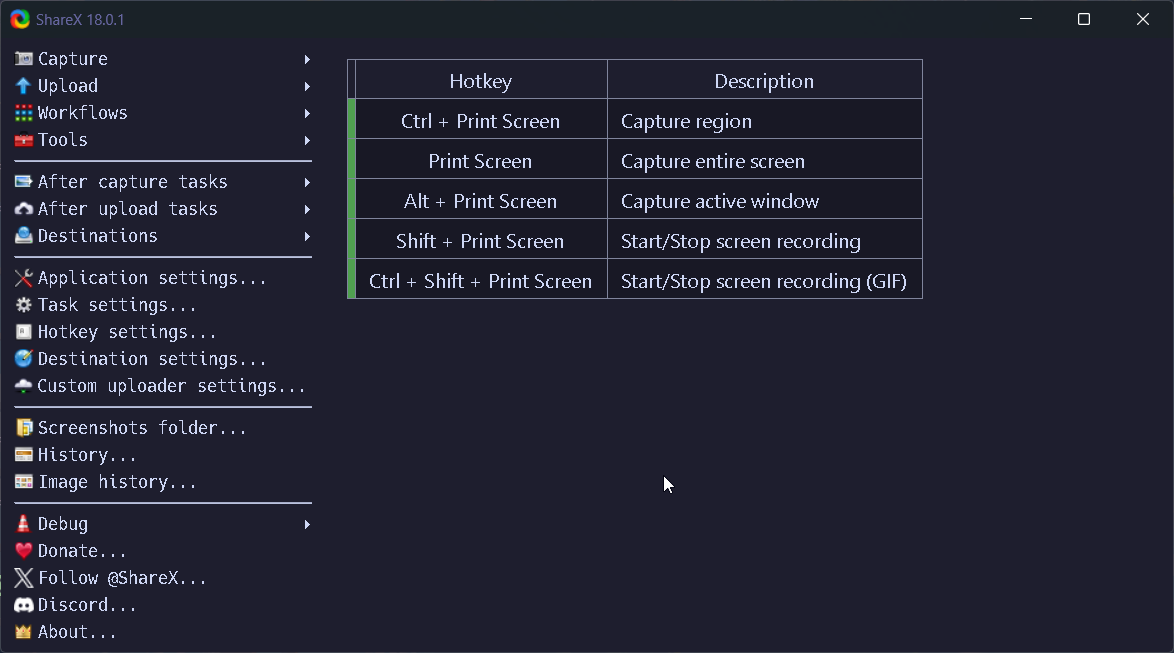
Keymaps
| Hotkey | Description |
|---|---|
| Ctrl + Print Screen | Capture region |
| Print Screen | Capture entire screen |
| Alt + Print Screen | Capture active window |
| Shift + Print Screen | Start/Stop screen recording |
| Ctrl + Shift + Print Screen | Start/Stop screen recording (GIF) |
These are the ShareX defaults. You can view or change them in ShareX > Hotkey Settings.
Frequently Asked Questions (FAQ)
Can I use my own ShareX settings?
Yes! Back up your current settings before applying Winfig dotfiles. You can always restore or merge your preferences later.
Is this safe to use?
All scripts and configs are open source. Review them on GitHub before running.
How do I update my ShareX dotfiles?
Simply re-run the web install command to fetch and apply the latest version.
Troubleshooting
| Issue | Solution |
|---|---|
| Hotkeys not working | Check for conflicts with other apps or reassign in ShareX Hotkey Settings. |
| Uploads failing | Verify your internet connection and destination account settings. |
| Settings not applied | Ensure you replaced the correct Settings.json and restarted ShareX. |
| Script errors during install | Run PowerShell as Administrator and check execution policy. |
If your issue isn’t listed, check the ShareX FAQ or Winfig GitHub Issues.